
Before creating a SOAPUI Test Case, have a look at
PROPERTIES OF SOAP PROTOCOL:
- SOAP stands for Simple Object Access Protocol.
- SOAP is an XML based Protocol for Communicating between two different Systems.
- SOAP is a Platform and Language Independent. Hence, a System developed using JAVA can Communicate with a different System developed in .NET.
- SOAP Requests/Responses are transported via HTTP.
SOAP MESSAGE FORMAT:
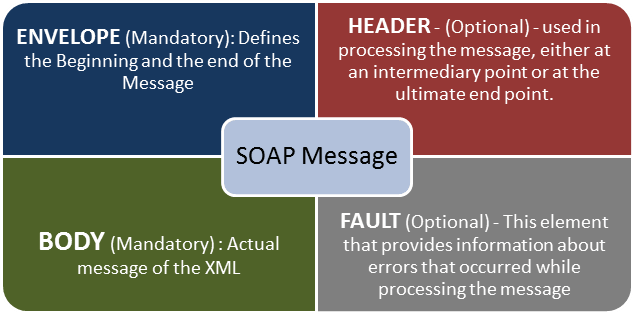
A SOAP Message is an Ordinary XML Document containing the following elements. Message can be either a Request Message or a Response Message.
After setting up the WorkSpace by Installing and Configuring the SOAPUI, We have to create Projects, Test Suites,Test Cases in order to test a given Web service.
CREATE A PROJECT:
Step 1: Depending upon the Project we need to import REST/SOAP. Now we will create a New SOAP Project by clicking on WorkSpace name.

Step 2: By using the following Request
http://www.webservicex.net/CurrencyConvertor.asmx?WSDL
1. Enter the Project Name
2. Enter the path of the WSDL Request. In this Case
http://www.webservicex.net/CurrencyConvertor.asmx?WSDL
3. Click OK.

Step 3: After creating a SOAP Project, We can see that there are two operations that will be imported
http://www.webservicex.net/CurrencyConvertor.asmx?WSDL
1. Enter the Project Name
2. Enter the path of the WSDL Request. In this Case
http://www.webservicex.net/CurrencyConvertor.asmx?WSDL
3. Click OK.
Step 3: After creating a SOAP Project, We can see that there are two operations that will be imported
into the Project.

Step 4: 1. Expand the first Request and Double click on the 'Request1', then it will display the SOAP Request in the XML Format.
2. Enter the From Currency and To Currency.
3. Click on the Submit Button.
4. Response XML will be displayed on the Right side pane.

Step 4: 1. Expand the first Request and Double click on the 'Request1', then it will display the SOAP Request in the XML Format.
2. Enter the From Currency and To Currency.
3. Click on the Submit Button.
4. Response XML will be displayed on the Right side pane.

No comments:
Post a Comment